How do I add a new client?
Save a client’s basic details so you can schedule bookings quickly.
Public guide
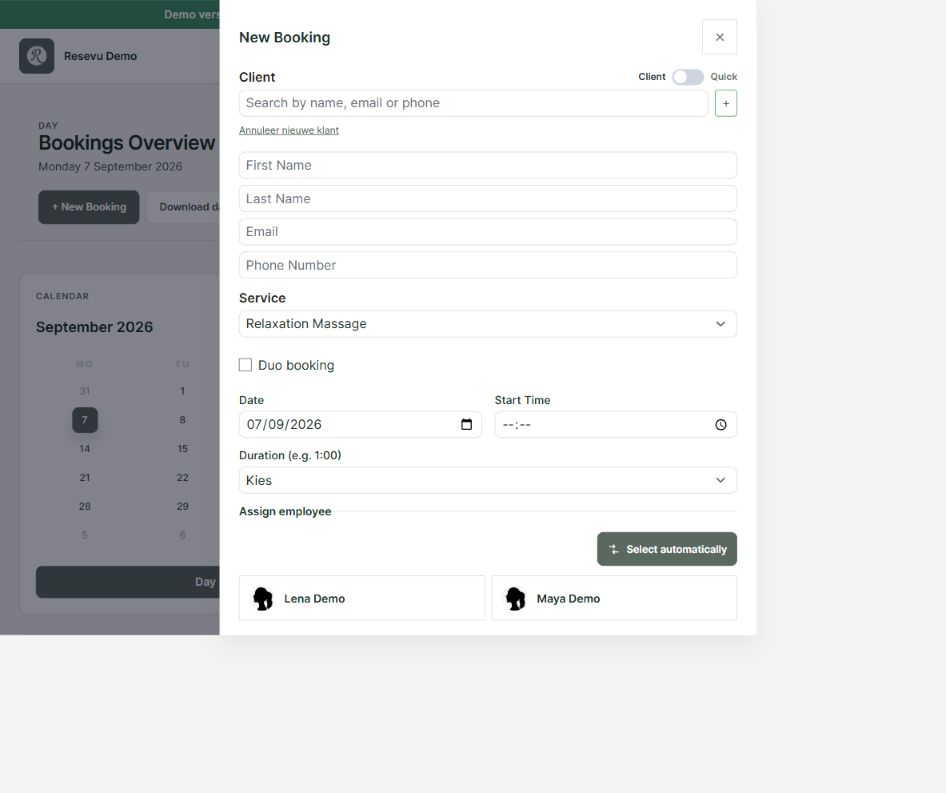
Create a client
- Open Clients in the admin menu.
- Choose New client.
- Enter the first name, last name and email address.
- Optionally add a phone number and internal note.
- Choose Save.
Only use the notes field for information your team needs to serve the client correctly. Avoid storing unnecessary sensitive personal data.
After saving, you can view booking history on the client record and update the details later.